Special Request Process

Are you a teacher who really wants to use Typesy with your students, but your administration unfortunately said there is no money for it? Well, just like we make awesome software, we worked with DonorsChoose to come up with a viable solution, as outlined below.
1

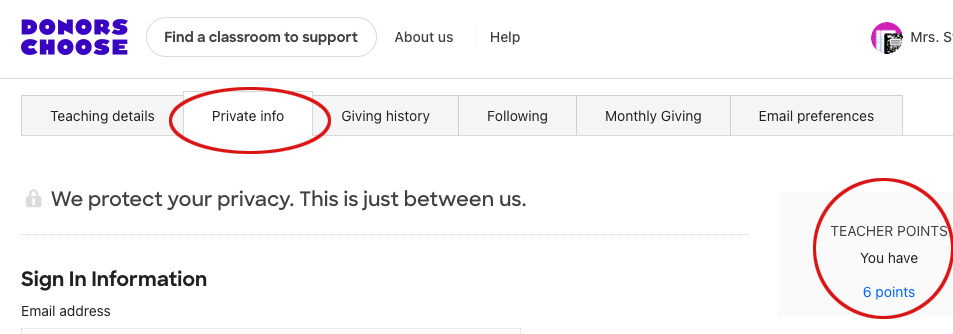
Make sure you have at least six Teacher Points to create a Special Project

Step 1: Make sure you have at least six Teacher Points to create a Special Project
2

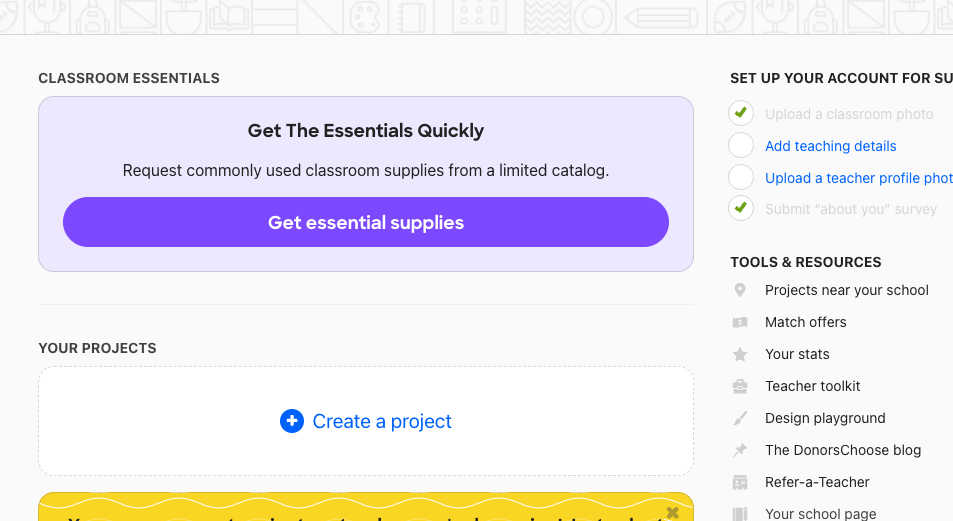
Click “Create a Project” just like you normally would

Step 2: Click Create a Project just like you normally would
3

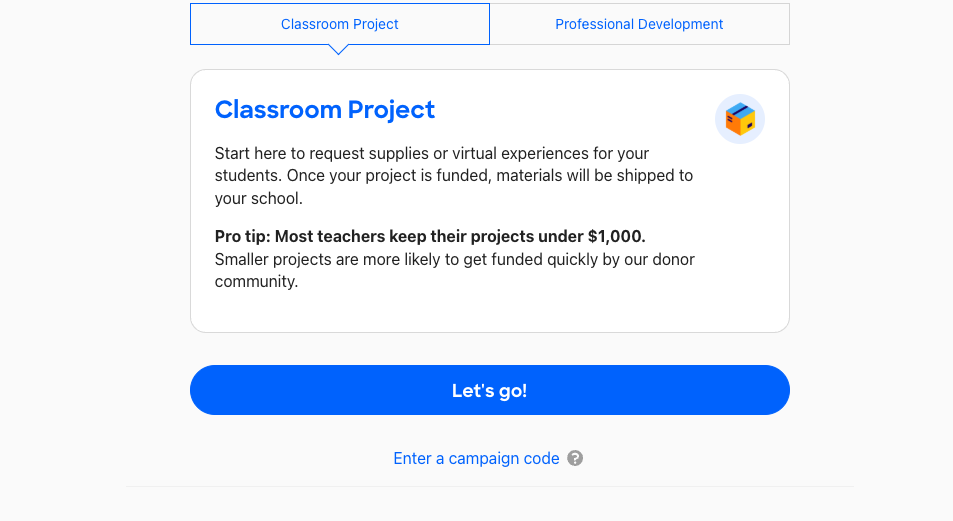
Make sure Classroom Project is selected and click “Let's go!”

Step 3: Make sure Classroom Project is selected and click Let's go!
4

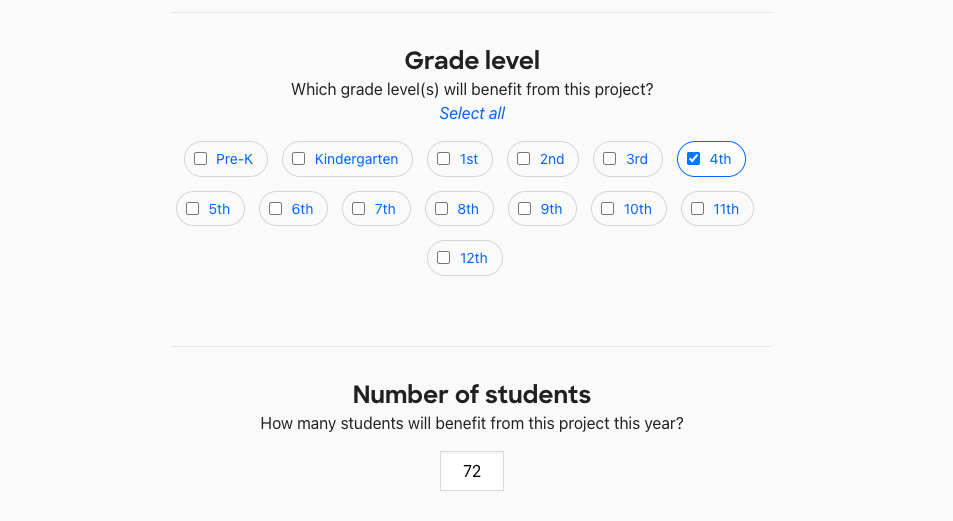
Fill out the standard information needed

Step 4: Fill out the standard information needed
5

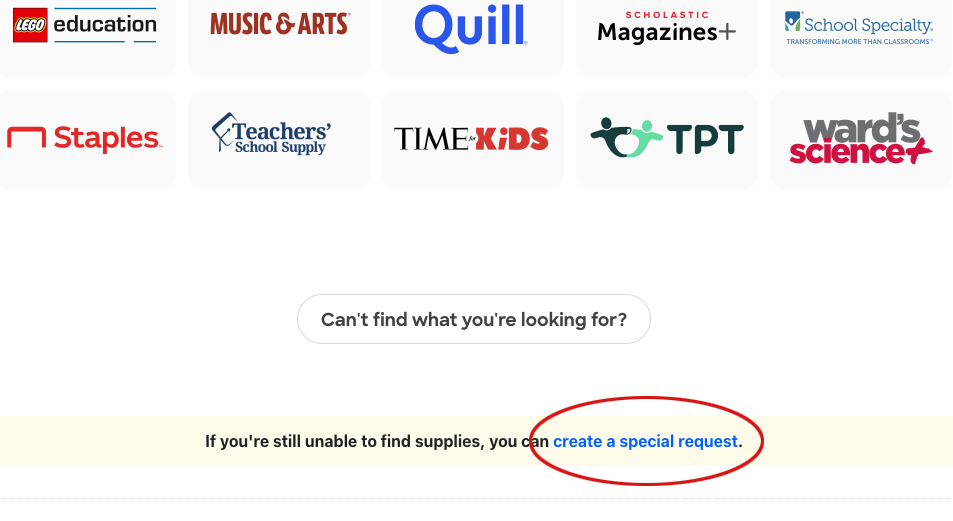
At the bottom of the page click “...create a special request.”

Step 5: At the bottom of the page click create a special request
6

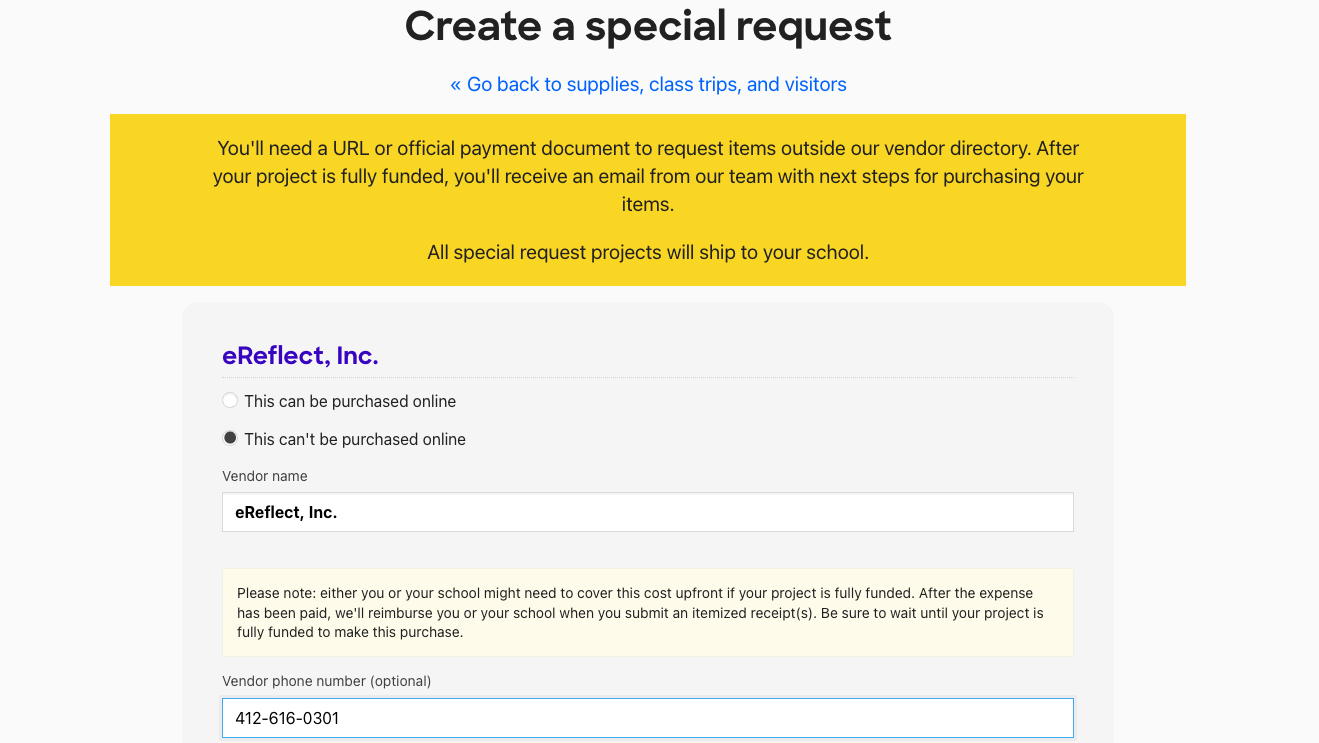
Choose “This can't be purchased online.” and add eReflect, Inc. as the Vendor and 412-616-0301 as the phone number

Step 6: Choose This can't be purchased online and add eReflect, Inc. as the Vendor and 412-616-0301 as the phone number
!

Before continuing, email [email protected] with the number of Typesy licenses you are requesting

There is a minimum request of 21 seats to meet the DonorsChoose project threshold.
7a

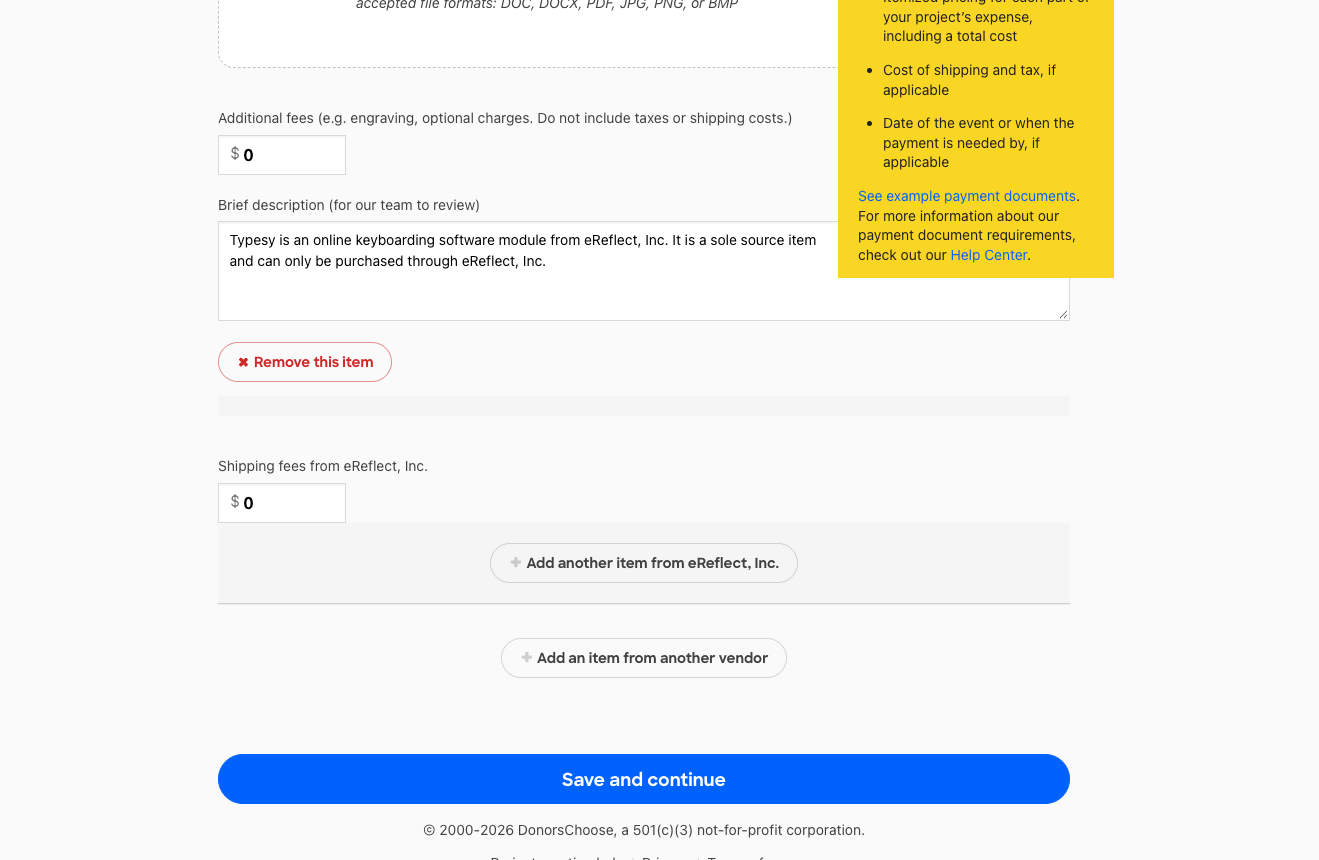
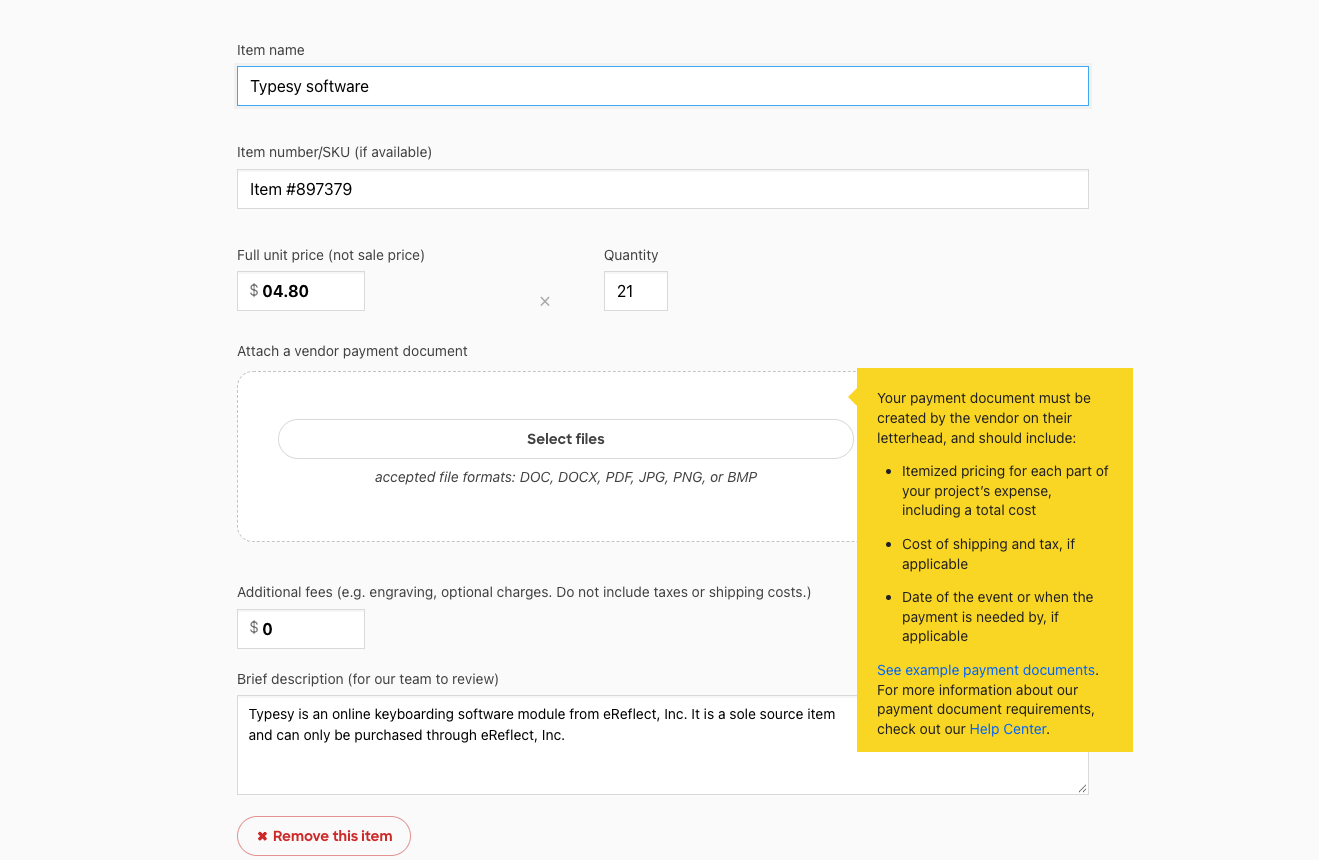
“Typesy (software)” is the Item Name and Item Number is #897379. The rest of what you need here will be supplied to you by the eReflect team as a “Typesy Purchase Quote”

Step 7a: Typesy (software) is the Item Name and Item Number is #897379
7b

No additional or shipping fees, and the sole source letter will be attached to the “Typesy Purchase Quote” we give you

Step 7b: No additional or shipping fees, and the sole source letter will be attached to the Typesy Purchase Quote
8a

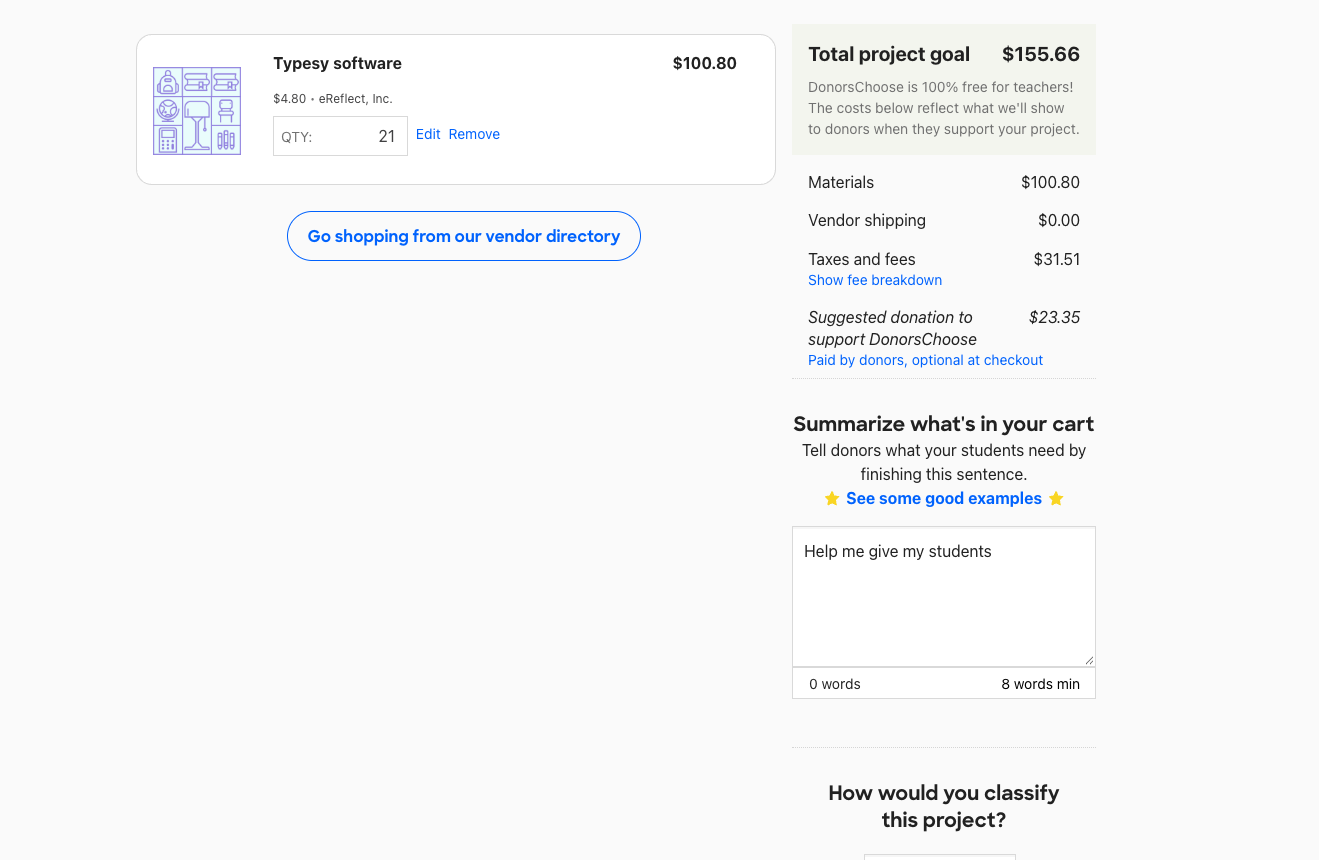
Standard confirmation screen

Step 8a: Standard confirmation screen
8b

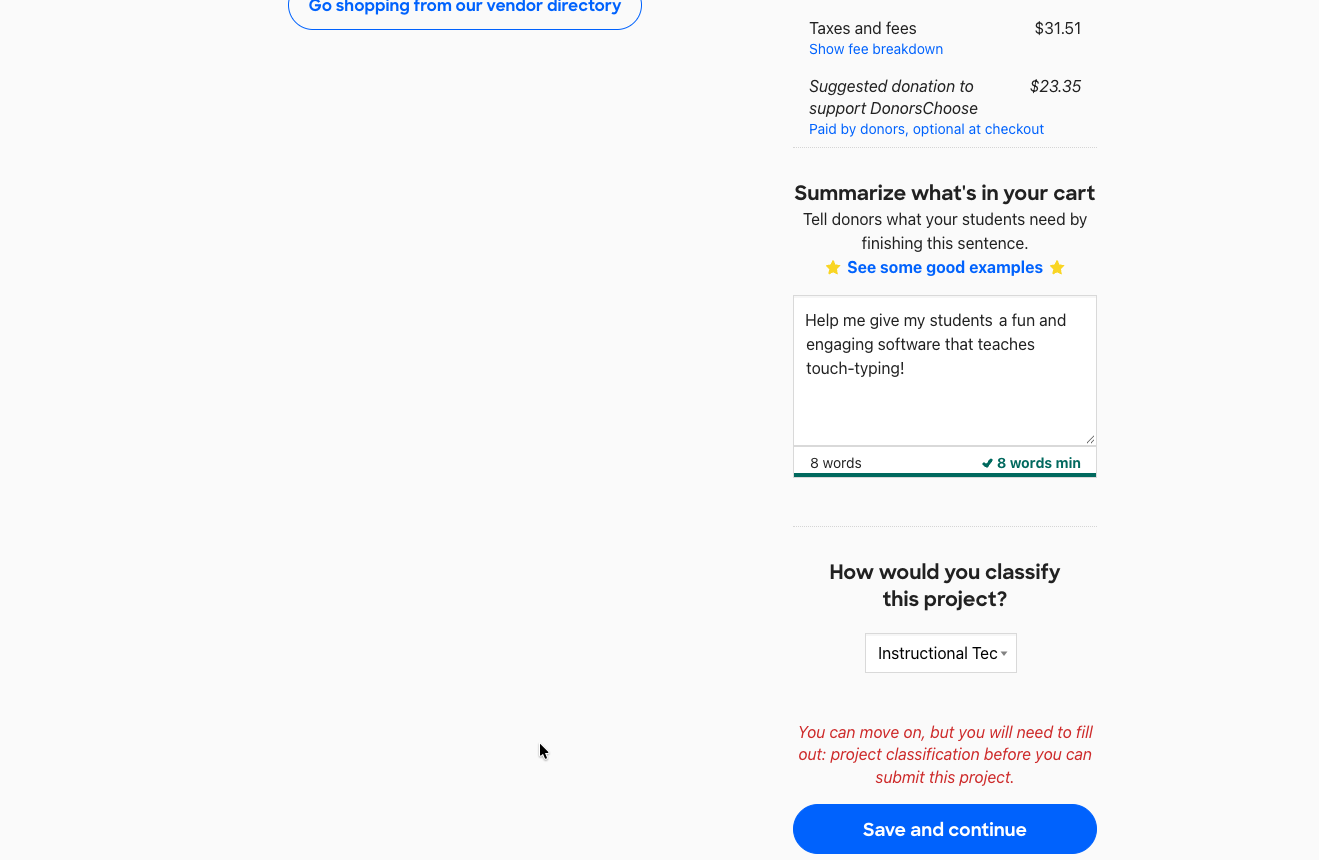
Complete the cart summary and classification and click “Save and Continue”

Step 8b: Complete the cart summary and classification and click Save and Continue
9a

Standard Review screen

Step 9a: Standard Review screen
9b

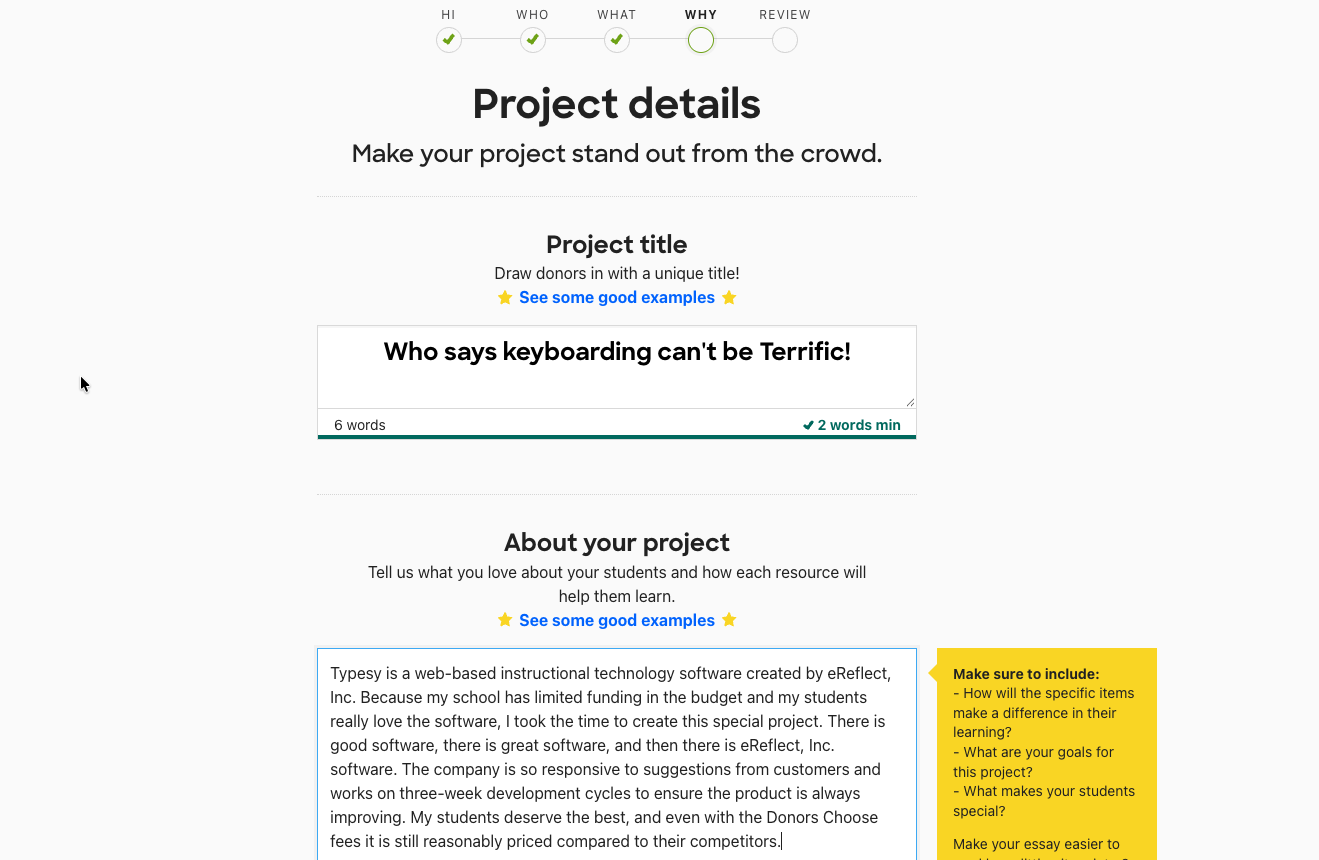
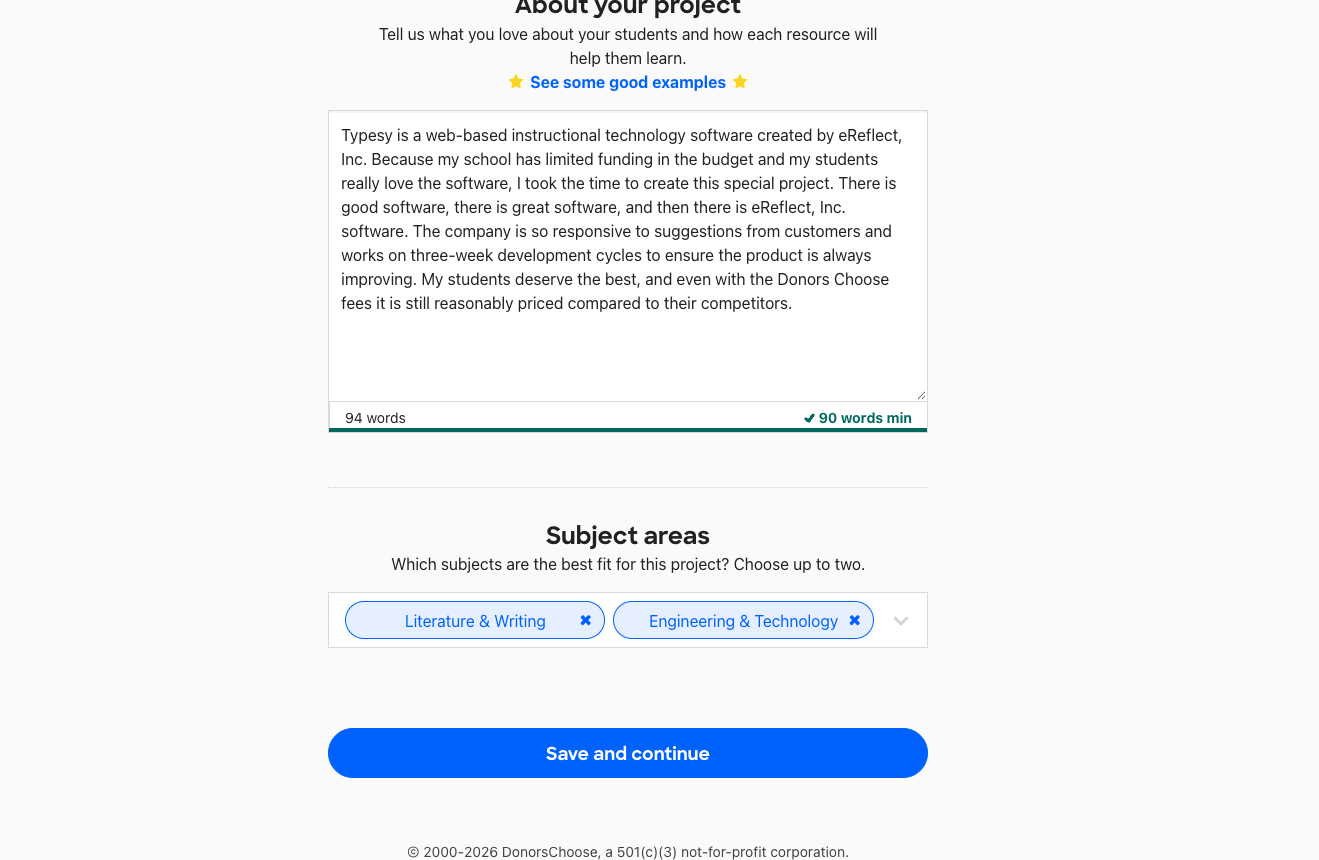
Again, click “Save and continue” after describing your project

Step 9b: Again, click Save and continue after describing your project
10a

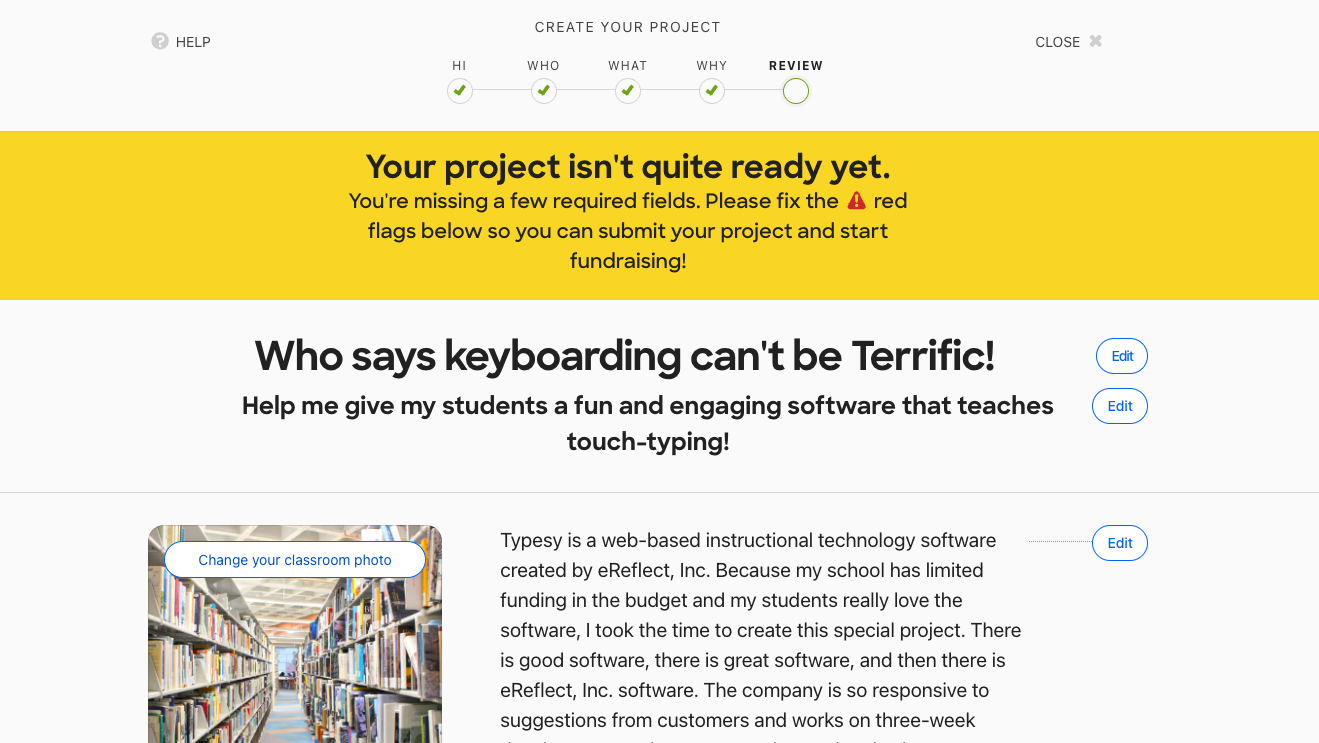
Final Review screen. The only error below is the Requestor Phone Number needs verified in this case

Step 10a: Final Review screen
10b

“Submit my project”!

Step 10b: Submit my project