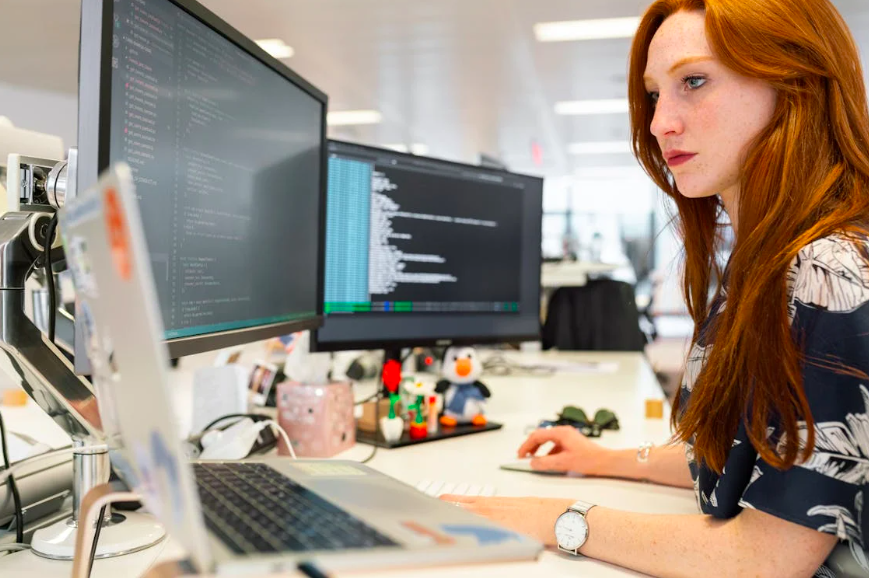
Dual monitors can be a game-changer for students and professionals alike. Whether you’re typing essays on one screen while researching on another or managing digital lessons and communication tools side by side, multi-screen setups can significantly improve efficiency. However, without the right ergonomic approach, they can also lead to neck strain, eye fatigue, and reduced typing comfort.
Balancing dual monitors ergonomically is not just about convenience—it’s about protecting your body while supporting focused, long-term digital learning. With thoughtful setup choices, you can enjoy the benefits of multi-screen work without sacrificing comfort or productivity.
Positioning Screens for Comfort and Focus
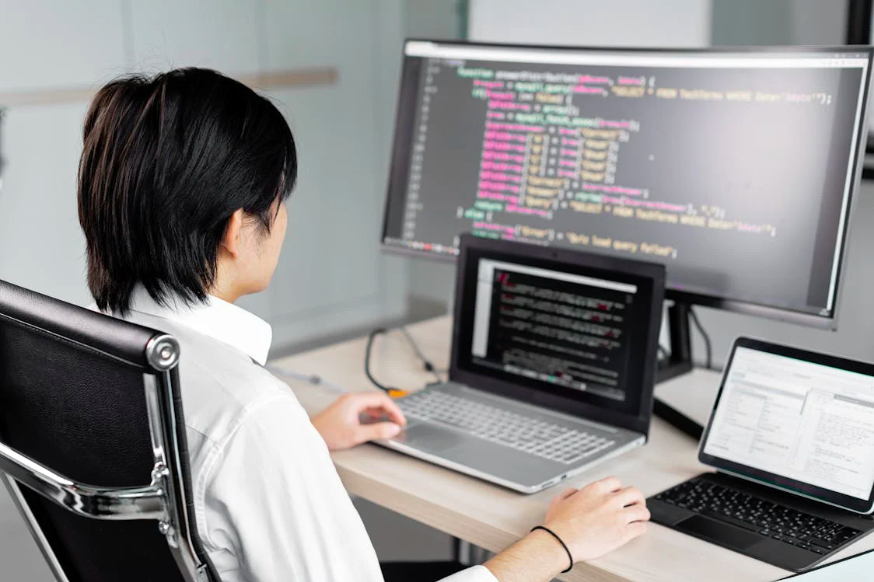
The foundation of an ergonomic dual-monitor setup is screen placement. Ideally, your primary screen—the one you use most for typing—should be directly in front of you. This helps maintain a neutral head and neck position during extended typing sessions. The secondary monitor can be positioned slightly to the side, angled inward so you don’t need to twist your neck sharply to view it.
Both screens should be at eye level or slightly below, allowing your eyes to naturally look downward without bending your neck. This positioning supports healthy posture for long typing sessions, especially when students are working on assignments that require sustained focus.
Distance matters, too. Monitors should generally sit about an arm’s length away. If one screen is significantly farther than the other, your eyes may strain as they constantly adjust focus. Keeping both screens at a similar distance helps reduce visual fatigue and supports smoother transitions between tasks.
Chair height and desk alignment also play a role. Your elbows should form roughly a 90-degree angle when typing, with wrists relaxed and shoulders down. This alignment ensures that typing across multiple screens doesn’t lead to unnecessary tension in the arms or upper back.
Lighting is another often-overlooked factor. Avoid placing monitors directly opposite bright windows or harsh overhead lights. Proper lighting reduces glare and supports comfortable viewing when switching attention between screens.
Master Typing & Digital Skills with Typesy!
Go beyond keyboarding—Typesy helps you boost digital literacy, productivity, and efficiency in today’s tech-driven world.



Supporting Typing Efficiency in a Multi-Screen Setup
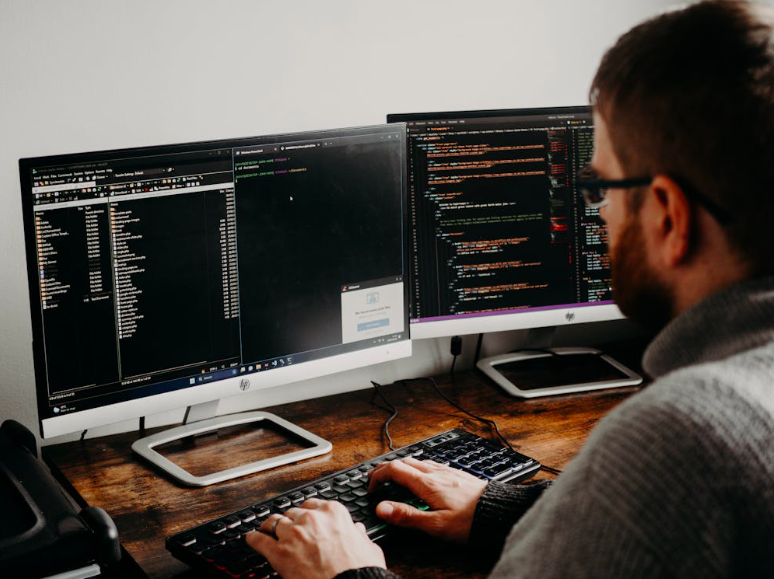
Typing is often the primary activity in a dual-monitor environment, whether students are drafting essays, coding, or completing digital coursework. A well-balanced setup supports speed, accuracy, and endurance.
Keyboard placement should remain centered with your primary monitor, even if your secondary screen is used frequently. This prevents awkward torso rotation and helps maintain efficient typing habits in digital learning. If you find yourself typing while facing the side monitor, it may be time to adjust your layout.
Using keyboard shortcuts can also reduce unnecessary mouse movement between screens. This not only improves workflow but also minimizes repetitive strain. Teaching students to rely more on keyboard navigation reinforces typing confidence and keeps hands positioned comfortably.
Breaks are essential, especially with dual monitors that encourage longer screen time. Short pauses every 20–30 minutes allow the eyes, hands, and neck to reset. Simple habits like looking away from the screens or stretching fingers can make a noticeable difference over time.
For younger learners or homeschool environments, dual monitors can support organization by separating learning tasks—one screen for instruction, another for practice. When paired with ergonomic awareness, this setup reinforces digital wellness for students while promoting productive screen use.
Making Ergonomics Part of Daily Digital Learning
Ergonomics isn’t a one-time setup—it’s an ongoing practice. As students grow or schedules change, monitor height, chair position, and typing habits may need adjustment. Encouraging learners to regularly check their setup builds self-awareness and responsibility around digital health.
Parents and educators can model good ergonomics by demonstrating proper posture and explaining why it matters. This helps students understand that comfort supports performance, especially during long typing assignments or exam preparation.
Ultimately, a balanced dual-monitor setup supports both physical well-being and academic success. When students are comfortable, they type with greater focus, make fewer errors, and feel more confident navigating digital tasks.
By pairing ergonomic awareness with strong typing skills, learners are better equipped to thrive in today’s multi-screen digital world.
Not on Typesy Yet? You're Missing Out!
Master typing, boost productivity, and enhance digital literacy with Typesy—the leading platform for adaptive and engaging typing education. Whether you're an individual learner, a homeschool educator, or managing a classroom, Typesy has the perfect solution for you!
Choose Your Ideal Experience:
 Get Started with Typesy Today! – Transform the way you learn and teach typing!