
My nephew does all his schoolwork on a MacBook Air propped up at the kitchen counter, and last winter, he asked me why his browser kept opening tabs he never clicked. That question turned into an afternoon of cleaning out extensions, checking login items, and rebuilding a homework setup from the ground up.
A MacBook can be one of the safest tools for remote learning, but only when a few deliberate choices back that up. None of this requires technical training or a pile of software. It comes down to knowing where the weak points sit: the browser, the accounts, the update settings, and the habits formed around all three.
If you’re stuck on how to create that safe digital learning environment at home, here’s the exact process I now use for setting up my device for a full school year of research, downloads, and video calls.
1. Start with the browser, not the antivirus app
Most home learning problems begin in the browser long before any app gets involved. Kids click into unfamiliar research sites, download PDFs from sources nobody has vetted, and install extensions that promise to block ads or speed up video loading.
I learned this firsthand when a “PDF converter” extension buried itself in my nephew’s Safari and started rerouting his searches to pages unrelated to his homework.
What I realized is that if I had built a habit of checking Safari’s extension list, I would have caught most of this early. The best part is that it took less time than logging into a school portal.
Here’s how you can do it on your Mac:
- Open Safari > Settings.
- Click on Extensions.
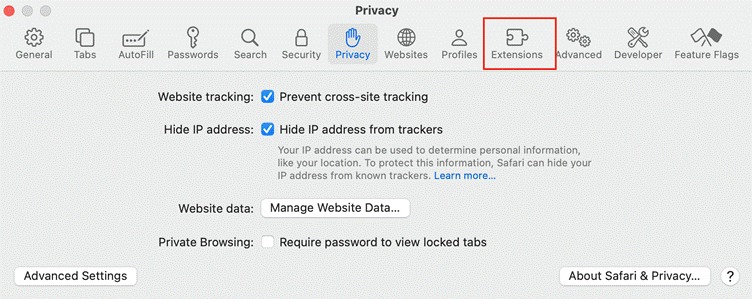
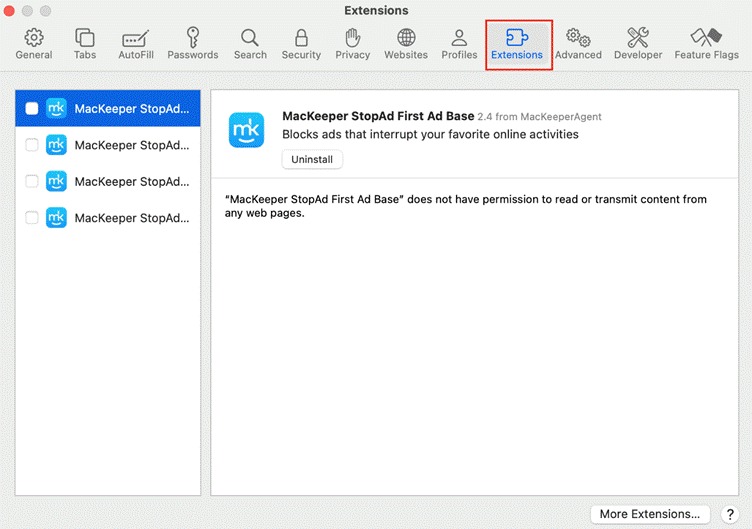
From here, you can remove anything that was not deliberately installed for a specific task. If a name in that list looks unfamiliar or was added without a clear reason, it should go.
2. Look out for any signs of browser viruses
Mac’s default browser, Safari, includes solid built-in protections, but it lacks an antivirus scanner of its own. This means infections can still happen through malicious sites, sketchy downloads, and phishing links buried in emails or comments.
A Safari virus on your Mac can significantly degrade browser performance or, worse, lead to more serious problems like data theft. Safari virus often shows up as sudden slowdowns, a homepage that changes on its own, or a flood of pop-up ads during a quiet research session.
A search bar that no longer points to the usual search engine is another common tell, and so is a browser that keeps redirecting to sites nobody typed in. Catching these signs early keeps a school project from turning into a much bigger cleanup job and means checking browser behavior regularly, not only when something looks broken.
3. Automate the updates that matter most
Outdated software is the single biggest opening for attackers and the easiest gap to close. Here’s how to check if there are any macOS updates:
- Go to Apple Menu > System Settings.
- Click on General > Software Update.
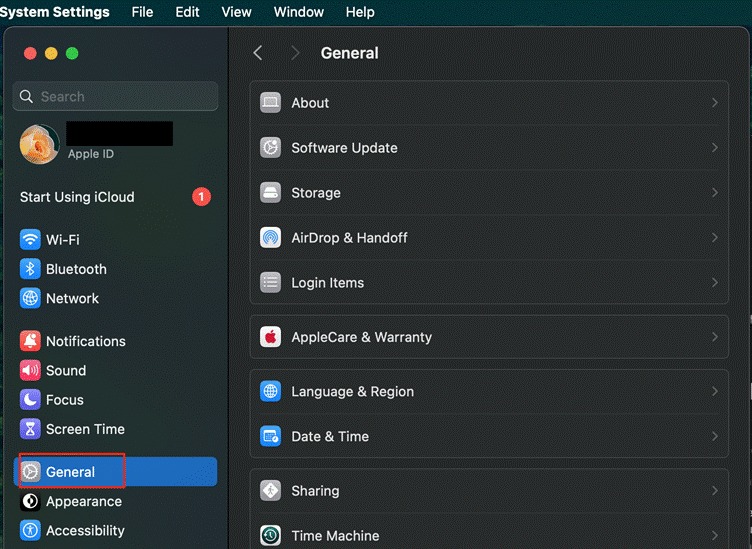
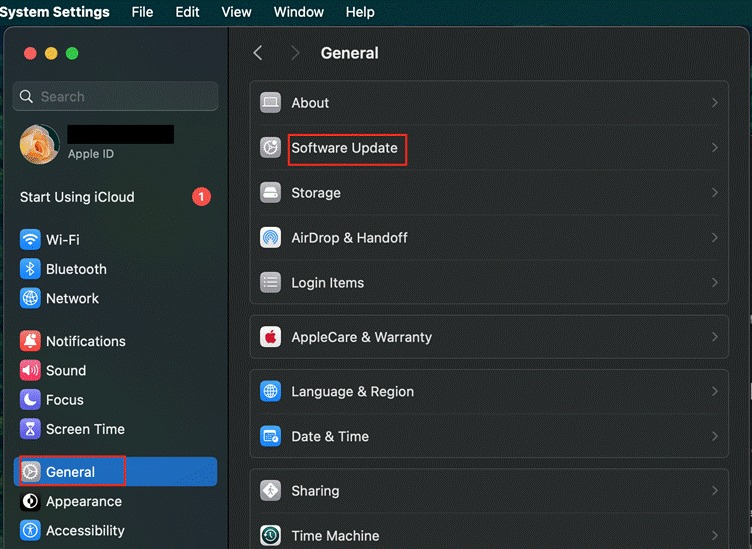
Security patches close the exact holes that malicious sites and files rely on, and letting them install overnight means schoolwork never gets interrupted by an update prompt in the middle of an assignment.
The same goes for every app used for research or writing: check for updates weekly rather than waiting for a reminder banner, since a browser or word processor running an old version is often the exact weak point an attacker is counting on.
4. Build privacy habits around the setup
Software settings only go so far without habits to back them up. My own rule, after cleaning up more than one infected browser over the years, is simple: never download an app or file from an unknown source, and never trust a pop-up that claims a virus was found.
Add a password manager for stronger, unique logins, and back up files regularly so nothing important rides on a single hard drive. None of these steps takes more than a few minutes to set up, and together they turn a MacBook into a genuinely dependable place to learn.
5. Give schoolwork its own account
Having a separate macOS account for schoolwork is a great way to stay focused, keep your personal files hidden, and prevent you from mixing up personal and school documents.
This one change stops a large share of accidental malware installs, since most threats need admin rights to take hold.
It also means a messy download in one account never touches files sitting in another, and a shared family Mac can host several of these accounts without anyone stepping on someone else’s files or history.
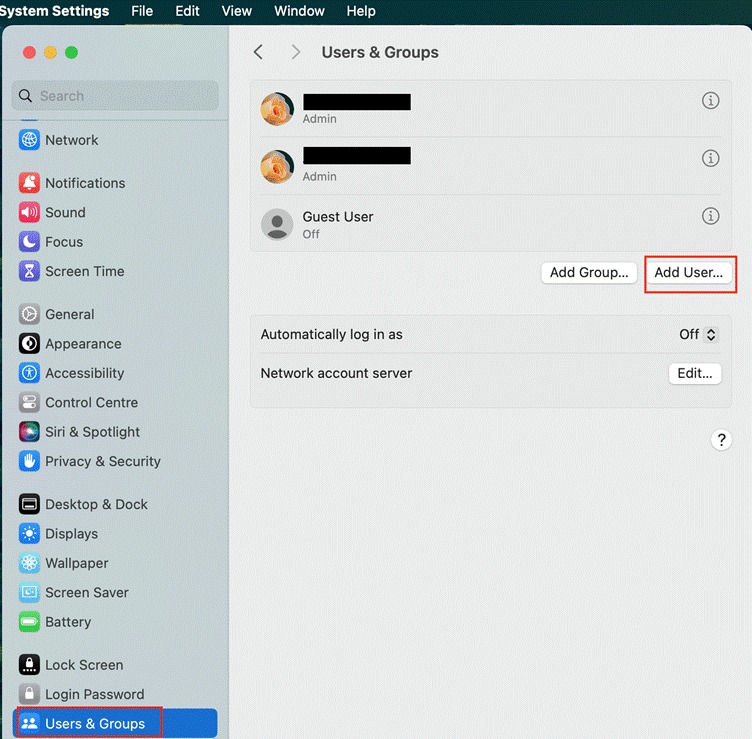
Here are simple steps to create a separate user account on your Mac:
- Open System Settings.
- Click on Users and Groups.
- From here, choose to add a new user and create a schoolwork account.
Conclusion
A safe digital learning environment does not depend on expensive software or constant supervision. It depends on a browser that gets checked, an account built specifically for schoolwork, updates that install on their own schedule, and a short list of habits that get repeated without much thought.
Set these up once at the start of the school year, and revisit the browser and account settings every few months rather than waiting for something to break first.
That routine is what kept my nephew’s MacBook running smoothly through an entire semester of research papers, video calls, and last-minute downloads, and it will do the same for anybody relying on a Mac for learning, no matter how many family members share the machine.